.webp)
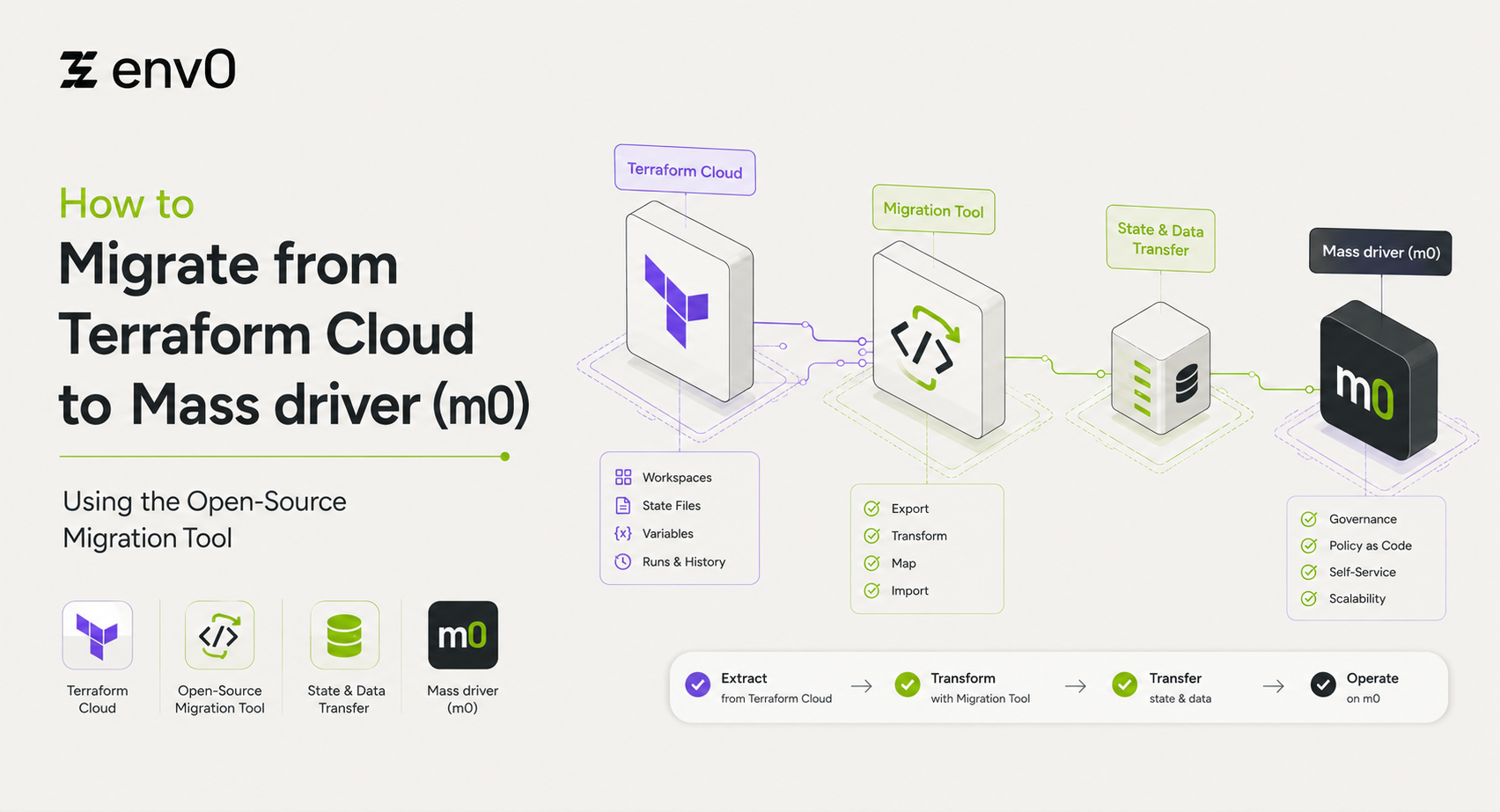
Infrastructure as Code (IaC) has transformed the way organizations manage cloud resources. Among the many IaC platforms available today, Terraform Cloud has become a popular choice for managing Terraform workflows, remote state storage, and team collaboration. However, changing requirements, pricing concerns, licensing updates, or the need for advanced infrastructure management features can lead teams to explore alternative platforms.
Watch Full Video:
If you're considering moving away from Terraform Cloud, migrating dozens or even hundreds of workspaces manually can be a time-consuming and error-prone process. To address this challenge, Massdriver (m0) has developed an open-source migration tool that automates the migration of Terraform Cloud workspaces, variables, configurations, and state data with minimal disruption.
In this guide, we'll walk through the complete migration process and explore how the m0 migration tool simplifies the transition from Terraform Cloud.
Why Migrate Away from Terraform Cloud?
Terraform Cloud offers many benefits, but it may not be the perfect solution for every organization. Some common reasons teams choose to migrate include:
- Concerns about recent licensing changes.
- Pricing based on resources under management.
- Missing features required by specific workflows.
- Desire for enhanced policy management and governance.
- Need for advanced drift detection and cost monitoring capabilities.
Regardless of the reason, having a streamlined migration path is essential to avoid downtime and configuration errors.
Introducing the m0 Migration Tool
The m0 migration tool is designed specifically to help organizations move from Terraform Cloud to Massdriver (m0) efficiently.
The tool automates the migration of:
- Terraform Cloud workspaces
- Workspace settings
- Environment variables
- State files
- Project structures
- Repository associations
By preserving the existing configuration and organizational structure, teams can continue managing infrastructure without rebuilding environments from scratch.
Example Migration Scenario
In the demonstration, a Terraform Cloud project named "m0 Migration Example" contains three workspaces that need to be migrated.
All workspaces share a common prefix:
shared-network
This naming convention makes it easy to identify and filter the workspaces targeted for migration.
Inside each workspace are:
- Variable values such as naming prefixes
- Azure provider credentials
- Terraform state files
All of this information must be transferred accurately to ensure continuity.
Prerequisites Before Starting
Before running the migration tool, you'll need:
1. Clone the Migration Repository
Download the migration tool from GitHub.
2. Configure API Tokens
Store both API tokens as environment variables:
export TFC_TOKEN=<terraform-cloud-token>
export M0_TOKEN=<m0-api-token>
These tokens allow the migration tool to communicate securely with both platforms.
3. Verify Access Permissions
Ensure that:
- You have administrative access to Terraform Cloud.
- You have sufficient permissions in your m0 account.
- The workspaces you want to migrate are accessible through the API.
Step 1: Export Terraform Cloud Workspace Configurations
The first phase of the migration process is exporting workspace configurations from Terraform Cloud.
Navigate to the Terraform Cloud export directory:
cd tfc
Initialize Terraform:
terraform init
Apply the configuration:
terraform apply
By default, the tool exports all workspaces.
However, you can customize the export using a Terraform variables file:
organization = "your-org-name"
workspace_prefixes = [
"shared-network"
]
After execution, the tool creates an output file containing:
- Workspace settings
- Variable values
- Metadata
- Configuration details
The exported data is stored inside the:
out/
directory.
Step 2: Generate m0 Resource Configurations
Once the workspace information has been exported, the next step is generating Terraform configuration files that will recreate those workspaces inside m0.
Navigate to the resource generator directory:
cd mz-resources-generator
Initialize Terraform:
terraform init
Run:
terraform apply
The tool processes the exported workspace data and generates corresponding m0 configurations.
These files are also written to an output directory for deployment.
Step 3: Create Workspaces in m0
With the configuration files generated, it's time to create the new environments in m0.
Navigate to the generated output directory:
cd out
Initialize Terraform:
terraform init
Deploy the resources:
terraform apply
After the deployment completes, m0 automatically creates:
- Projects
- Environments
- Variable mappings
- Repository associations
In the example migration, the original Terraform Cloud project appears in m0 with all three workspaces successfully recreated.
It's worth noting that m0 refers to workspaces as environments, but the functionality remains essentially the same.
Preserving Project Structure
One of the most valuable features of the migration tool is its ability to maintain the original project hierarchy.
The migration preserves:
- Project names
- Workspace relationships
- Repository links
- Variable configurations
This minimizes operational disruption and reduces the learning curve for teams transitioning to the new platform.
Important Limitation: Sensitive Variables
The migration tool intentionally does not transfer sensitive variable values.
For example:
ARM_CLIENT_SECRET
will not be migrated automatically.
Instead, these variables must be entered manually after migration.
This design prevents accidental exposure of sensitive credentials and follows security best practices.
After migration, administrators should:
- Review all environment variables.
- Re-enter secrets securely.
- Validate provider authentication settings.
Step 4: Migrate Terraform State Data
Workspace configurations alone are not enough.
Terraform state files must also be migrated to ensure infrastructure continuity.
The migration tool includes a dedicated script for transferring state data.
Navigate to:
tfc/migrate-state
Execute:
./migrate-workspaces.sh
The script automatically:
- Downloads state files from Terraform Cloud.
- Maps workspaces to corresponding m0 environments.
- Uploads state files into m0.
This process eliminates the need for manual state manipulation.
Verifying the Migration
After state migration completes, verify that everything was transferred correctly.
Open the migrated environment inside m0 and inspect:
- Environment variables
- State files
- Repository associations
- Workspace settings
Next, trigger a Terraform run.
A successful migration should result in:
No changes required
This confirms that:
- State data matches existing infrastructure.
- Resources are correctly tracked.
- No unintended modifications will occur.
Benefits of Using m0 After Migration
Once migrated, organizations can take advantage of several advanced features available within m0.
Drift Detection
Automatically detect infrastructure changes made outside Terraform workflows.
Continuous Cost Tracking
Monitor cloud spending with:
- Budget thresholds
- Cost alerts
- Financial visibility across environments
Native OPA Integration
Implement Policy as Code using:
- Open Policy Agent (OPA)
- Governance controls
- Compliance automation
Improved Infrastructure Visibility
Gain deeper insight into infrastructure relationships and dependencies.
Why Automation Matters
Migrating three workspaces manually might be manageable.
Migrating:
- 25 workspaces
- 100 workspaces
- 500+ workspaces
becomes significantly more challenging.
Manual migrations increase the risk of:
- Configuration drift
- Missing variables
- State corruption
- Human error
The m0 migration tool eliminates much of this risk through automation.
Final Thoughts
Migrating from Terraform Cloud doesn't have to be a complicated or risky process. The open-source m0 migration tool provides a practical and automated path for transferring workspaces, variables, configurations, and state data while maintaining infrastructure integrity.
By preserving project structures and minimizing disruption, teams can quickly transition to m0 and begin benefiting from features such as drift detection, cost management, and native Policy-as-Code support.
For organizations managing a large number of Terraform workspaces, this migration tool can save countless hours of manual effort while reducing the risk of mistakes. Whether you're migrating a handful of workspaces or an entire enterprise environment, automation can make the process significantly smoother and more reliable.